Play Training
Use Suggest Budgets For Products
Number of Guide Steps: 5
In the strategic landscape of Vision VX, the platform brings a level of automation and precision to the budgeting process, simplifying the intricate task of allocating funds across various products within a campaign.
The suggested product budgets, generated dynamically based on the client's category, the campaign goal, and the overall working budget, serve as a foundational starting point for advertisers.

- 1. Automatic Suggested Budgets
- 2. Adjusting Suggested Budgets
- 3. Lock or Unlock Suggested Budgets
- 4. Adding More Products
- 5. Adding or Removing Budget
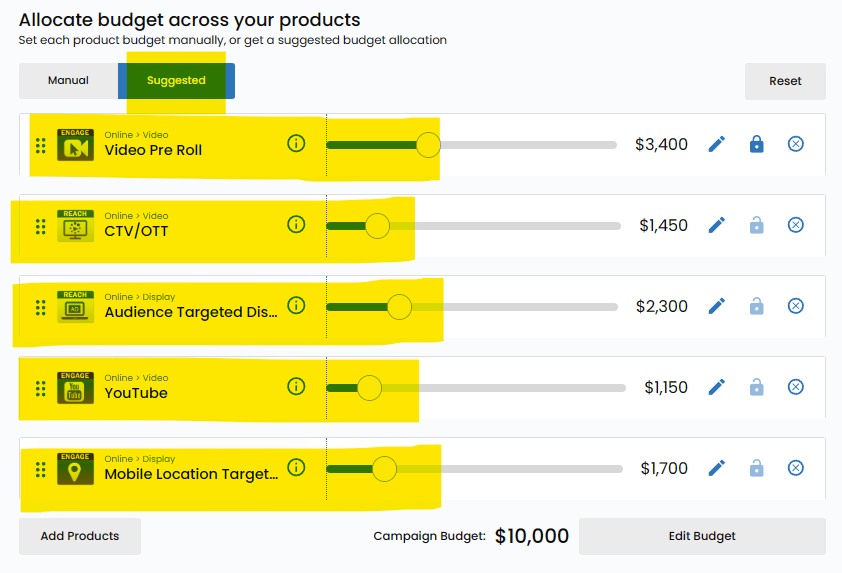
Automatic Suggested Budgets.
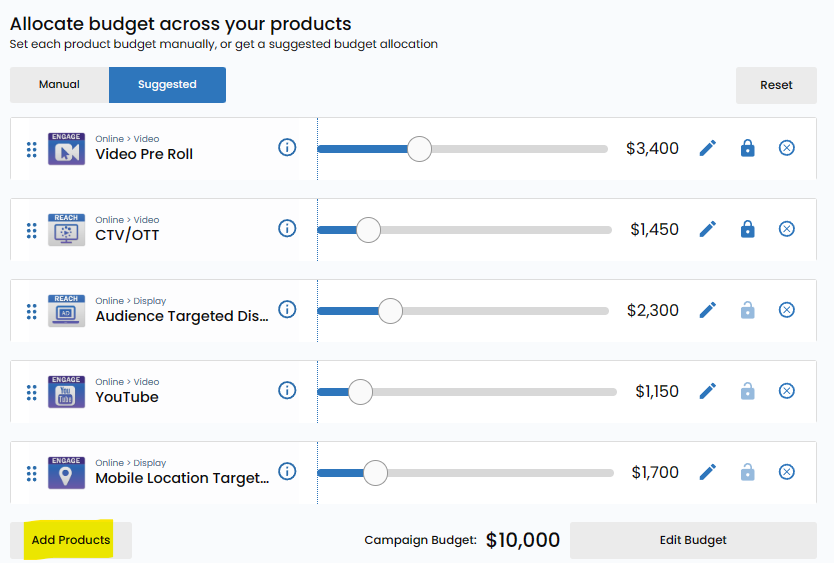
Upon entering the budgeting phase, Vision VX intuitively suggests product budgets based on a sophisticated analysis of factors such as the client's category, the specific campaign goal, and the total working budget allocated to the campaign.
This default setting provides advertisers with a solid foundation aligned with the campaign's strategic objectives.
Adjusting Suggested Budgets.
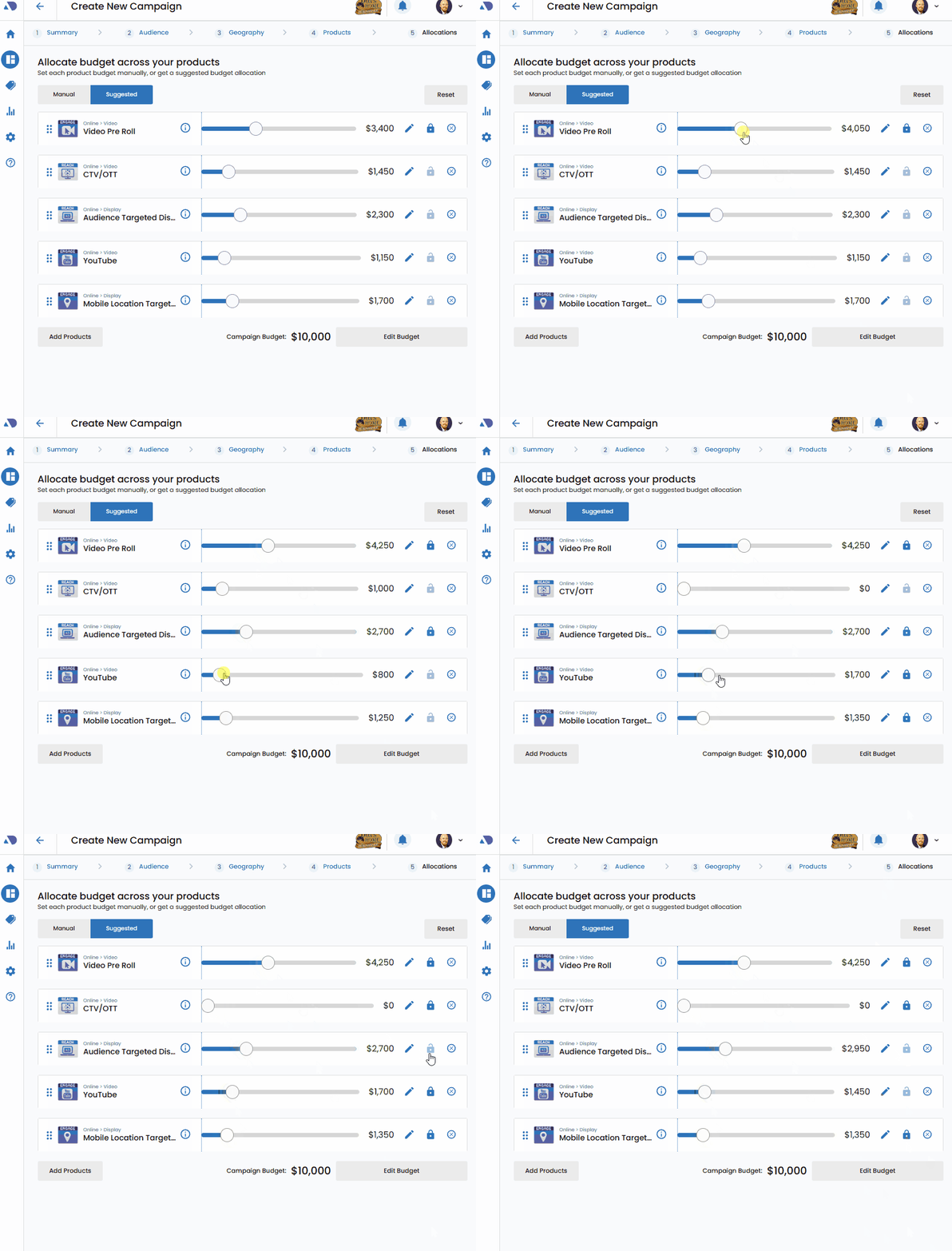
Recognizing the need for flexibility, Vision VX empowers users to fine-tune the suggested budgets according to their specific preferences and campaign strategies. This adjustment is facilitated by dragging sliders associated with each line item.
As users modify the sliders, the platform dynamically recalculates the remaining budget allocations to ensure alignment with the overarching campaign goals.
Lock or Unlock Suggested Budgets.
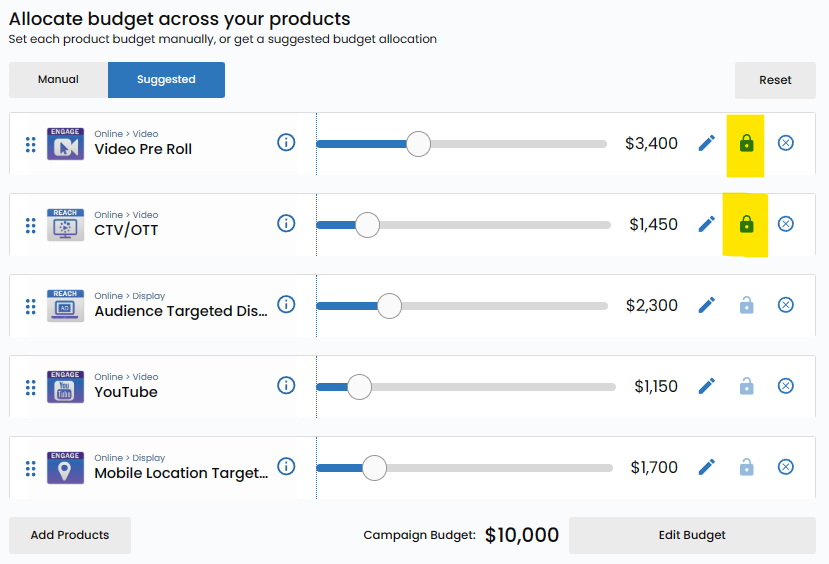
Positioned next to each product is a lock or unlock symbol, providing users with the choice to either fix the budget in place or allow the platform to dynamically reevaluate the budget as sliders are adjusted.
Unlocking the budget lets the engine override manual settings, allowing for a more dynamic and responsive budgeting process.
Conversely, locking a budget in place ensures that the allocated funds remain fixed, providing stability and predictability in budget management.
Adding More Products.
You can easily add more products into the campaign via the Add Products button. This will add products to the campaigns, but not increase the budget. The budget will then be divided agmosnt all the produts, including the newly added ones.
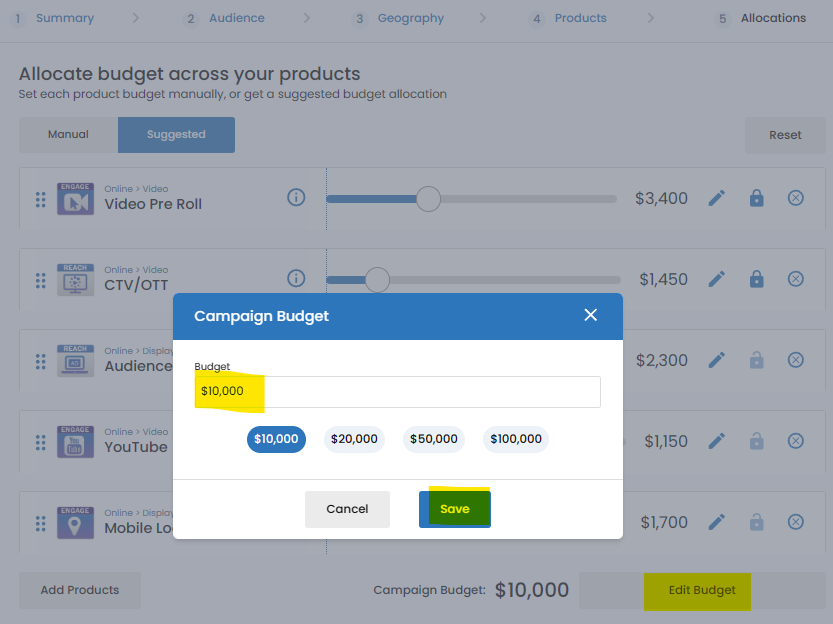
Adding or Removing Budget.
You may also add or subract total budget from the campaign using the Edit Budget button on the Products screen. Once you add the additional or subtractional budget you will be asked to decide which products to allocate the increase or decrease to.