Play Training
Request Conversions
Number of Guide Steps: 5
Seeking adjustments to conversions in your campaign involves a similar straightforward process using the Notes feature in the Order Details Tab of your campaign in Vision VX.

- 1. Go to Order Details
- 2. Select Relevant Product(s)
- 3. Click the Modify Button
- 4. Request Conversions via Notes
- 5. Click Submit
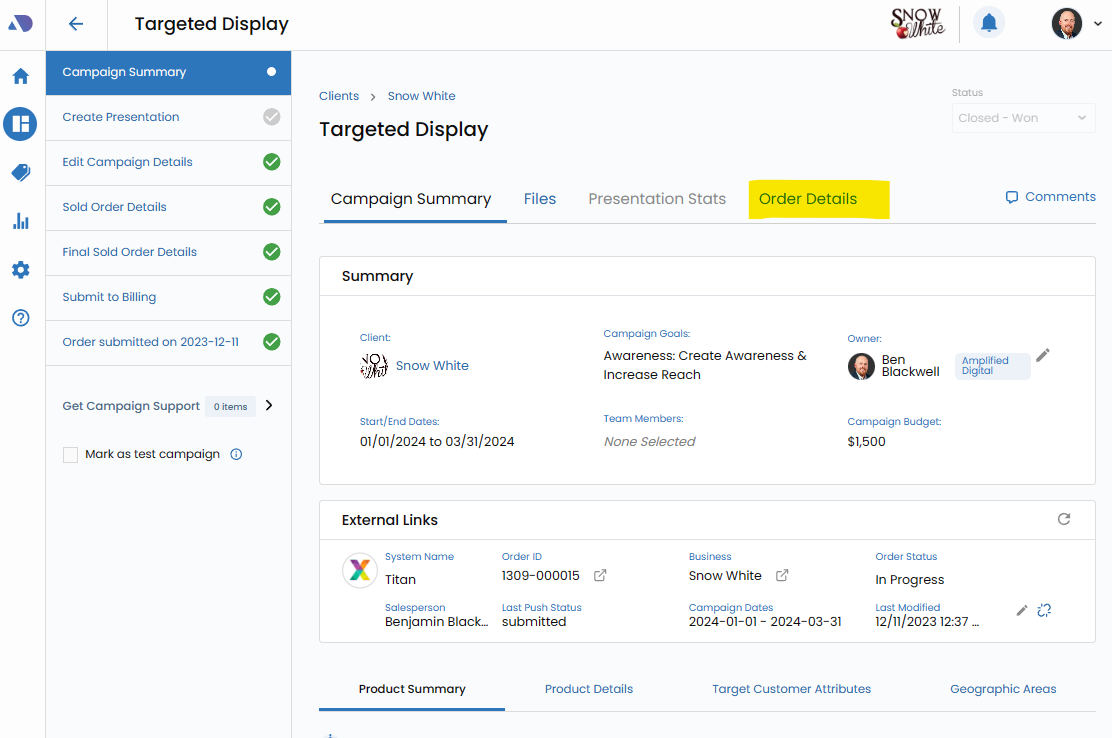
Go to Order Details.
Access the Order Details tab to begin the process of requesting conversion adjustments.
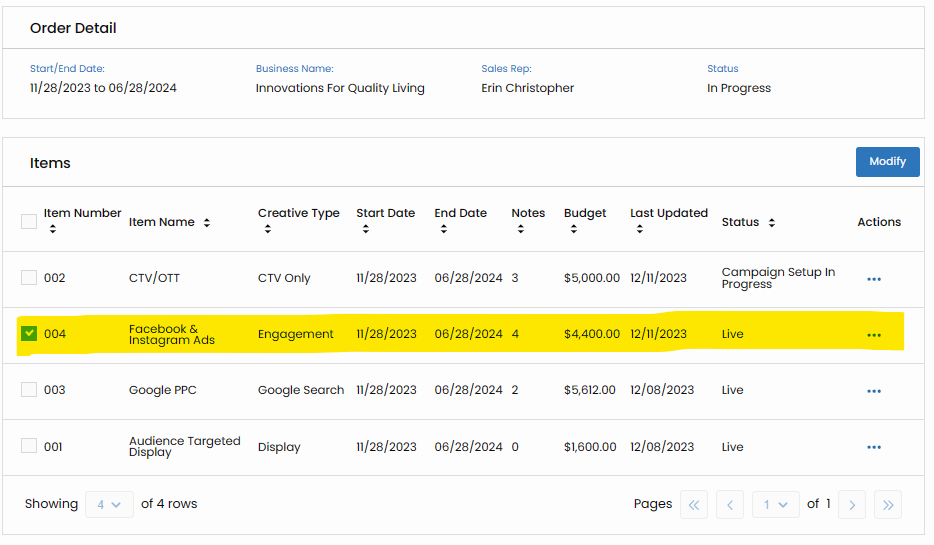
Select Relevant Product(s).
Check the box next to the product(s) where you wish to make conversion changes. This targeted selection ensures that your requests are applied precisely.
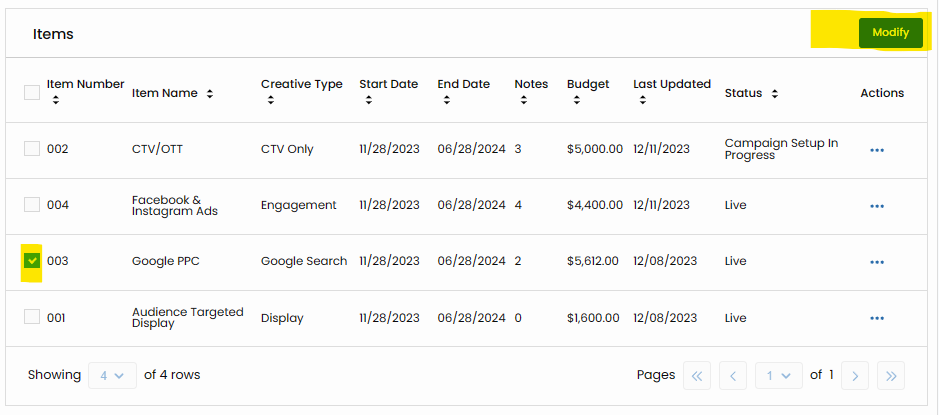
Click the Modify Button.
Initiate the modification process by clicking "Modify." This action sets the stage for refining conversion-related elements.
Request Conversions via Notes.
In the Notes section, articulate your conversion adjustment requests. Clearly communicate the changes you are seeking to enhance the campaign's effectiveness.
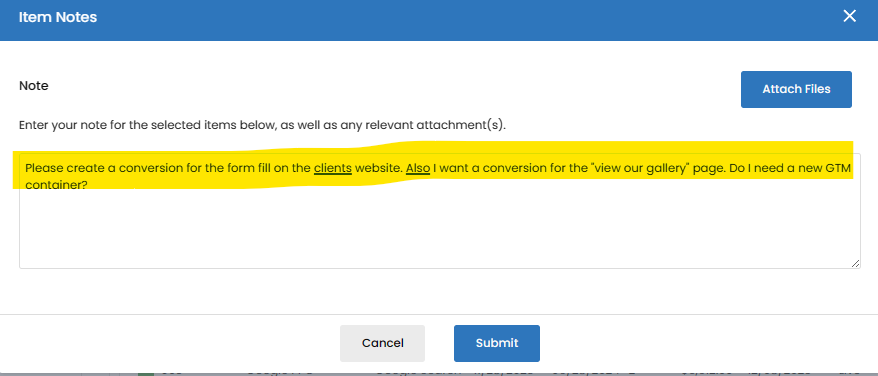
Click Submit.
Once your conversion requests are documented in the notes, click "Submit" to convey your adjustments effectively. This step triggers the implementation of the requested changes.