Play Training
Confirm Sold Order Details
Number of Guide Steps: 5
The Sold Order Details workflow step stands as a pivotal juncture, specifically tailored for the fulfillment of Amplified Products through Titan VX. This meticulous process captures essential information, ensuring a seamless and accurate transition from campaign creation to fulfillment.
By navigating the Sold Order Details workflow with diligence and confirming as final, you set the stage for a successful fulfillment journey, where each detail is a crucial component in the amplification of campaign success.

- 1. Initiate the Sold Order Workflow
- 2. Complete Product Details
- 3. Complete all Fulfillment Details
- 4. Save Your Changes
- 5. Confirm as Final
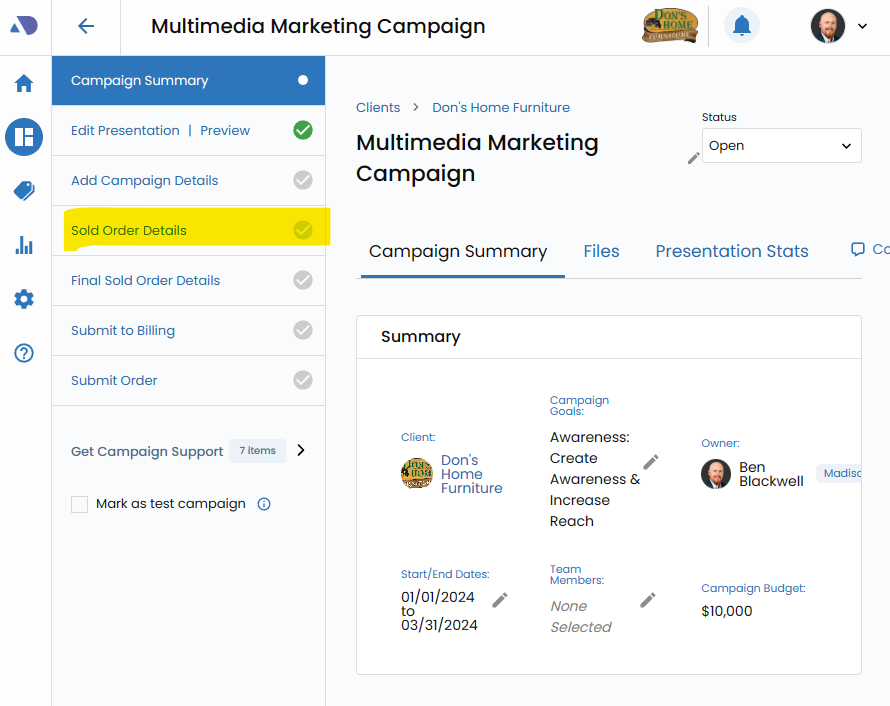
Initiate the Sold Order Workflow.
To embark on the Sold Order Details workflow, open the dedicated form designed for this purpose. This step is exclusively relevant for campaigns with Amplified products that are to be fulfilled via Titan VX.
Complete Product Details.
Thoroughly populate the product details section within the Sold Order Details form. This includes comprehensive information related to the Amplified Products enlisted in the campaign.
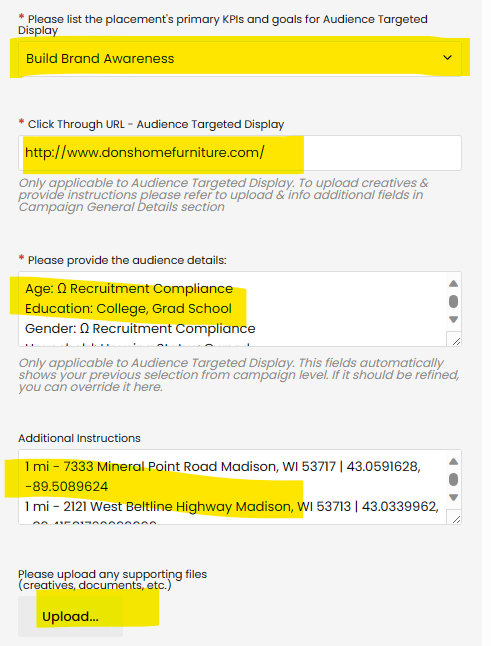
Complete all Fulfillment Details.
Delve into the fulfillment details, adding any specific requests or additional files deemed necessary for a successful fulfillment process. This section serves as a comprehensive repository for instructions and supplementary materials.
Ensure that all product sections are meticulously completed. A green checkmark next to each section signifies completeness. This comprehensive approach guarantees that no crucial detail is left unattended, contributing to a seamless fulfillment process.
A green check mark next to the product section will inform you when you have completed all nessecary details.
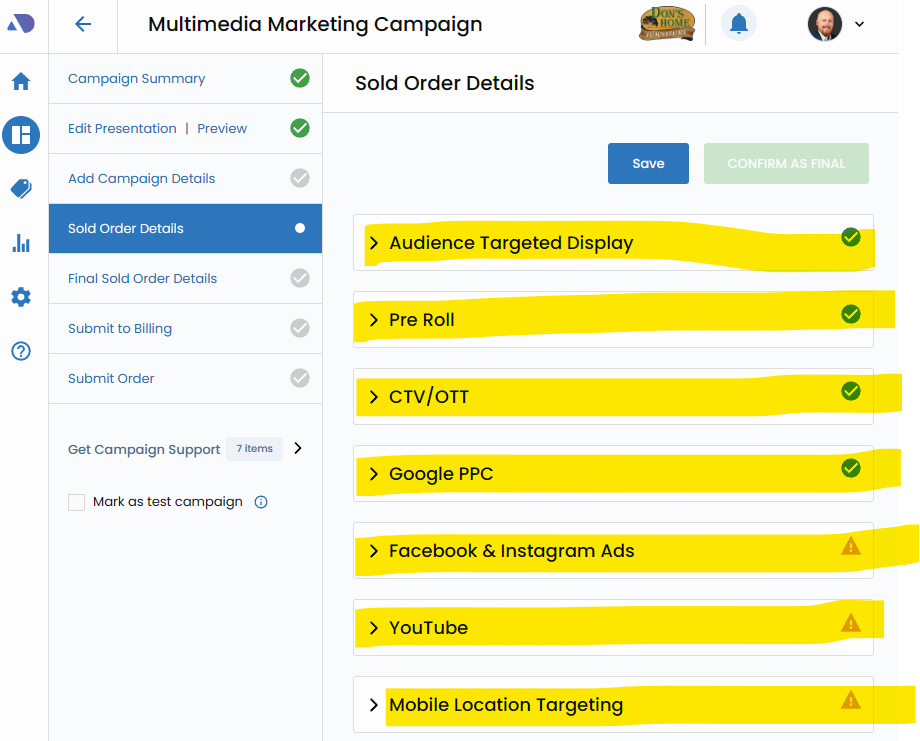
Save Your Changes.
Before advancing to the next stage of the Sold Order process, save all the changes made within the Sold Order Details form. This ensures that the information is securely stored and ready for the subsequent steps.
When you save, you can return to the form at any time and make edits.
To finalize, Confirm as Final in the next step.

Confirm as Final.
Confirming as final is a critical step in the process. Once you are satisfied with the information provided and have saved your changes, confirm the Sold Order Details as final. This action signifies that the details are conclusive and accurate for fulfillment.
Note on Editing:
After confirming as final, editing capabilities are restricted. Be mindful that any adjustments or modifications to the Sold Order Details will no longer be possible. Therefore, it is imperative to review and confirm with utmost precision.